
Nintendo DS and 3DS on the Pocket Duo: emulators and screen setup
Choose WatermelonDS or Azahar, understand stable versus alpha builds, configure both Duo screens and use review settings as a starting point.
In this guide
Start with WatermelonDS for DS and Azahar’s stable Android build for 3DS, then check the particular games you want to play. Both appear in published Pocket Duo reviews, and their separate screen controls suit the handheld’s two-panel layout. Results still vary by game, so check each one you care about.
New to Android handhelds? The quick start glossary explains what an emulator, game file, APK and BIOS are before you choose one.
Watch a step-by-step example
The French Cloud Gaming France walkthrough, filmed on the regular Pocket Duo, reaches Azahar at 20:41 and melonDS at 28:19. The video page has the full chapter outline and related setup guides. Follow the chapter for the interface, and use the project links here for current downloads.
Choose a DS emulator with external-display support
WatermelonDS documents separate external-display layouts, touch-screen use and per-game display settings, along with several renderers and resolution scaling. How a layout behaves on your firmware still needs a quick test on the device. See the WatermelonDS README.
For a performance reference, Retro Game Corps reports using 4× resolution and the low-input-latency option on the Duo, on an unnamed WatermelonDS build. Try those settings once the basic screen assignment works.
Which Azahar version should I use?
Choose the stable channel for a first setup. At this source check, 2126.2 is the stable release, while 2127.0 Alpha 4 is explicitly a prerelease. Keep a working setup and a save backup before trying the preview for a particular feature or fix.
Alpha 4 adds Android per-game settings: long-press a game in the application list to configure it on its own. That helps when one game needs a different shader profile from another. Its release notes also describe ADPF CPU-work hints, lower latency and revised “disable right eye” heuristics. The quoted 15% performance gain was measured on a Mali device, not a Pocket Duo.
The project links below show checked versions separately from video settings, because an older review that says only “Azahar” can’t tell you which current release to install.
Assign the game screens and test touch input
Open the emulator itself first. In its layout or display controls, choose a separate-display arrangement if the installed build has one. Place the game’s touch screen on the Duo’s touch panel, then tap a menu item to confirm the touch lands where you expect. Check the screen-swap control too, particularly for games that change how they use the two displays.
Close the emulator and launch the same game again. Once the assignment sticks, repeat the launch from your frontend. If it works directly but changes when launched from your library, look at the frontend’s launch-display settings. The screen troubleshooting guide walks through that comparison.
Use 2× as an Azahar starting point, then test upward
TechDweeb describes 2× as a practical balance on the Duo. Another review’s Azahar setup uses Vulkan, 3× resolution and Turnip Duo 5.1; the driver is visible on screen, but the Azahar version isn’t.
Try 2× first, check a demanding part of your game, then increase resolution if there’s room. If a particular game stutters, lower its resolution before changing several settings together. The game notes directory links individual footage, including Super Mario 3D Land and Monster Hunter 4G.
For another regular-Duo profile, Retro Game Corps’ November driver update runs Azahar with Vulkan, asynchronous shaders and 3× resolution. The reviewer leaves Disable right eye rendering and Hardware shaders off as a smoother general profile, then turns hardware shaders on by hand for titles that need more speed. That build had no per-game hardware-shader setting; Alpha 4’s per-game controls came later. The Azahar build and Turnip package in the video aren’t named, though the description links Turnip Duo 5.1. Move up to 3× once 2× runs well.
The same video reports different results by title: Super Mario 3D Land gets fast-forward headroom from hardware shaders; Pokémon Ultra Sun shows Pokémon as outlines with that option on; Donkey Kong Country Returns 3D runs faster with it on; and Mario Kart 7 and Super Smash Bros. for Nintendo 3DS appear in short 3× samples. Newer builds may behave differently, and each game note links the exact clip.
What does Pretendo online play require?
Pretendo’s official Azahar guide requires access to a real, homebrewed 3DS or 2DS for initial setup with Artic Setup Tool, then Nimbus inside Azahar. A friend code or modded console alone does not finish the emulator setup.
The guide supports official Azahar builds, not third-party forks. Its required online LLE modules disable save states while enabled. Those modules emulate more of the console’s system services; they are separate from ordinary graphics settings.
Follow the official guide for prerequisites and account setup. It illustrates desktop menus; Android controls may differ, and we have no completed Duo online test. This does not establish support in Azahar Nano or other forks.
How useful are Duo Lite tests for a regular Duo?
Lite footage is good for shortlisting games and finding settings to try. Retroid lists different processors, graphics hardware and Android versions for the two models:
| Model | Processor | Graphics | Stock Android |
|---|---|---|---|
| Pocket Duo | Dragonwing Q-7790 | Adreno 722 | 16 |
| Pocket Duo Lite | Dragonwing QCS6125 | Adreno 610 | 15 |
The regular Duo has more processing headroom, but a different emulator build or graphics driver can still change the result for a game. Duo Lite Plus is another model again: Retroid lists the Q-7790 and Adreno 722 for it, so check whether a video says Lite or Lite Plus.
For a Lite reference, forthenext tests 17 3DS games in this stream on a supplied GammaOS Nano 1.5 beta with the bundled Azahar Nano player, mostly starting at 2×. It includes a good Nano Assault EX sample, persistent flickering in Fire Emblem Fates and a hard lock in Mario & Luigi, which is why a per-game report beats a blanket “3DS works” label. Each game note links the exact passage.
That beta was a development build at the time. The official GammaOS supported-device table doesn’t list the regular Duo, so for a regular Duo, follow the Android emulator steps above. Don’t copy a Lite firmware image, and don’t assume its bundled player matches upstream Azahar.
For more historical samples, the earlier Lite 3DS stream includes driver experiments and crashes, while the DS stream compares SeedlessDS with a DraStic fork. The guide to reading game tests explains how to separate speed, frame pacing, input and firmware differences.
A second Lite beta test: dynamic resolution and remaining limits
V1cariousGaming’s separate GammaOS preview tests a 6 GB Duo Lite. The bundled player is Azahar Nano, but the firmware and emulator build numbers are unknown, so it may not match the other reviewer’s Nano 1.5 beta.
Its Pokémon X sample uses 2× with dynamic resolution enabled, so the scale can change during play. Fire Emblem Awakening has a good opening sample, but the reviewer had already run it once to compile shaders, so your first launch may look different.
The video also includes a useful failed test: Luigi’s Mansion: Dark Moon still struggles after the reviewer selects Native (1×) and switches dynamic resolution off.
For DS, the reviewer describes Sonic Rush as smooth with closely synchronized screens, while Spirit Tracks still has some noticeable touch delay. Test speed, touch and screen sync separately on your own games.
Once speed, touch and screen assignment work, the shader guide covers optional LCD effects and why each panel needs checking separately. Those cosmetic effects are separate from the shader-compilation hitches covered in game tests.
LineageOS is still a development lead
A November 6 developer progress report shows LineageOS using both screens of a regular Pocket Duo. No build number, release date or download was supplied. Keep using the Android setup above until a Duo-specific release and installation instructions are available; a firmware image for a different Retroid model is not a substitute. This report provides no new DS or 3DS performance results.
The developer also linked a shared LineageOS code change for choosing which display receives gamepad input. That is source-code progress, with no new firmware download or game test.
Apps in this guide
Latest releases. A video may have used an older version.
- WatermelonDSPreview · 0.8.0.rc3
- AzaharStable: 2126.2 · Preview · 2127.0-alpha4
- Turnip for Adreno 722 / Duo5.1
- GammaOSv1.4.4-ANBERNICRGDS
- LineageOSSee the project for available builds
Sources
- LineageOS: gamepad display-focus source change
- Pretendo: official Azahar online setup prerequisites
- WatermelonDS renderers and external-display support
- Azahar 2126.2 stable release
- Azahar 2127.0 Alpha 4: Android per-game settings and renderer changes
- Retro Game Corps: WatermelonDS settings on Duo
- TechDweeb: Azahar resolution on Duo
- Retro Game Corps: Duo driver update and Azahar settings
- Cloud Gaming France: Azahar and Turnip Duo setup
- forthenext: Duo Lite, GammaOS Nano beta and 17 3DS games
- V1cariousGaming: separate Duo Lite GammaOS preview
- Retroid: regular Pocket Duo specifications
- Retroid: Duo Lite and Duo Lite Plus specifications
- GammaOS official supported-device table
- Cloud Gaming France: full Pocket Duo setup guide (French)
Related game notes
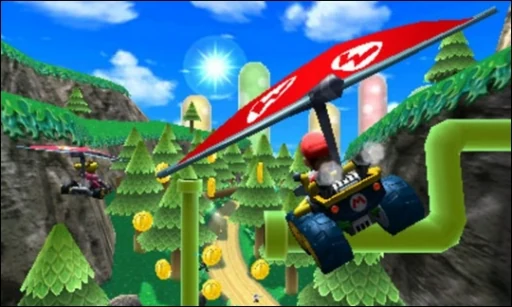
 3DSMario Kart 7Regular Duo reviews and an earlier Duo Lite test give different results, so check the hardware, emulator and driver on each short clip below.Pocket Duo and Duo Lite
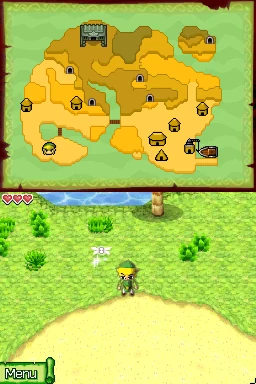 DSThe Legend of Zelda: Phantom HourglassThe Legend of Zelda: Phantom Hourglass runs at reported full speed with SeedlessDS high-resolution rendering on Lite. The reviewer reports substantial fast-forward headroom early on; not every touch or lid-close puzzle was tried.Pocket Duo and Duo Lite
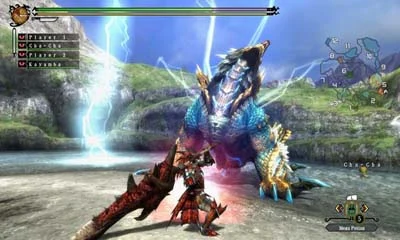 3DSMonster Hunter 4GOne reviewer found the game stuttered at 4× after reusing another game’s profile, then improved at 3×. The emulator and driver are not named.Pocket Duo
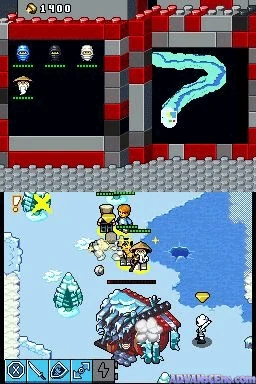 DSLEGO Battles: NinjagoIn LEGO Battles: Ninjago, the reviewer reports the SeedlessDS LCD shader appearing on only the top screen of Lite, and later disables it. The build is not shown, so newer versions may differ.Pocket Duo Lite
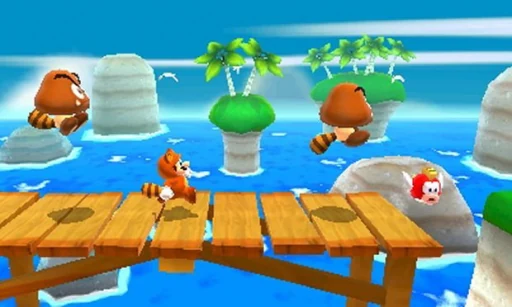 3DSSuper Mario 3D LandReviewers report smooth play around 3×, and a written review saw drops to around 45 fps on the stock driver. 4× worked in the areas shown but could stutter in one video.Pocket Duo
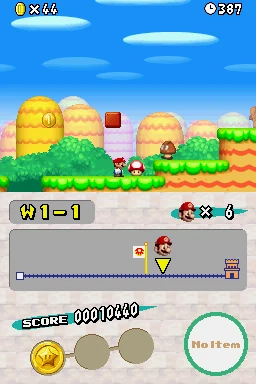 DSNew Super Mario Bros. (DS)New Super Mario Bros. shows intermittent scrolling stutter in the reviewer’s DraStic rev i18n test on Lite even while the speed counter says 100%. The build is not shown and the cause is unresolved.Pocket Duo Lite
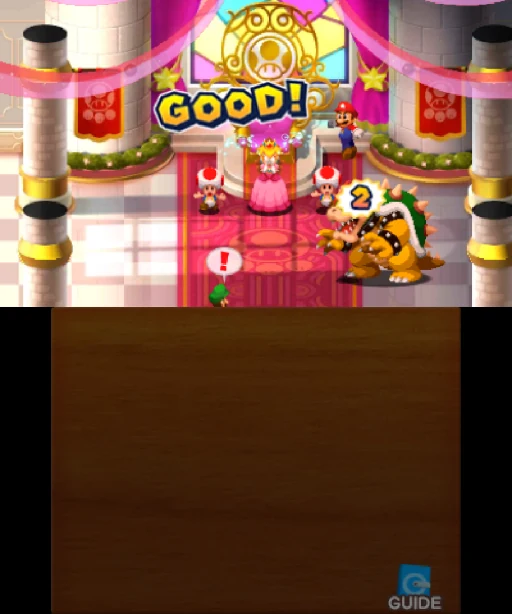 3DSMario & Luigi: Superstar Saga + Bowser’s MinionsOn a Duo Lite running the GammaOS Nano 1.5 beta, the game hard-locked after leaving fast-forward. The reviewer says the issue is still being worked on.Pocket Duo Lite
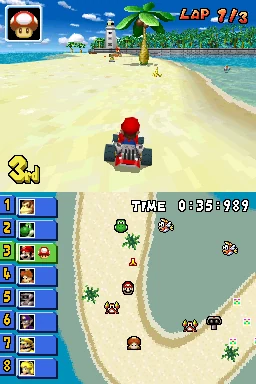 DSMario Kart DSMario Kart DS exposes a hold-button problem in the Lite SeedlessDS test: drifting and holding items behave like repeated presses. A controller test looks normal to the reviewer, and no fix for the emulator or button mapping is found.Pocket Duo Lite
Show 29 more
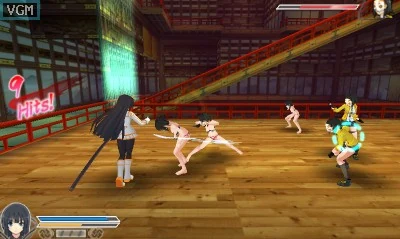 3DSSenran Kagura 2: Deep CrimsonOn a Duo Lite running the GammaOS Nano 1.5 beta, 2× shows some flickering. Controls then appear stuck after a Circle Pad Pro option is changed, and the reviewer is unsure whether the emulator crashed.Pocket Duo Lite
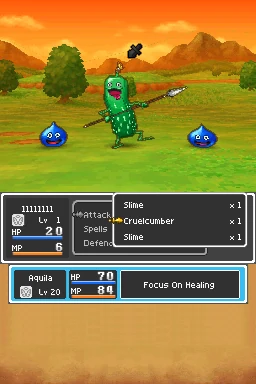 DSDragon Quest IX: Sentinels of the Starry SkiesDragon Quest IX: Sentinels of the Starry Skies gets a positive verdict in a short test with SeedlessDS high-resolution rendering on Lite. No frame rate is given and only a short stretch was played.Pocket Duo Lite
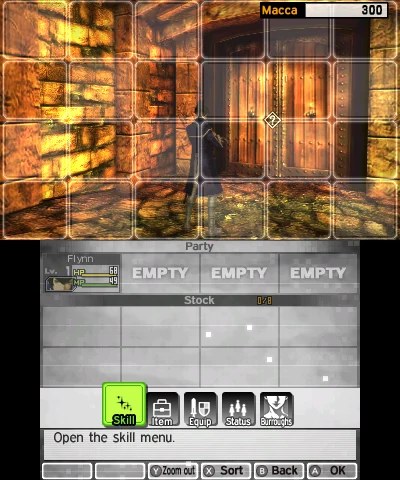 3DSShin Megami Tensei IVOn a Duo Lite running the GammaOS Nano 1.5 beta, the reviewer reports good speed at 2× with fast-forward headroom, though much of the short stretch shown is opening dialogue rather than combat.Pocket Duo Lite
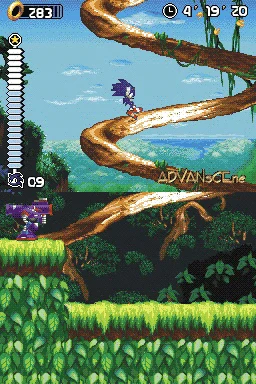 DSSonic RushIn Sonic Rush on Lite’s GammaOS preview, the reviewer reports smooth motion and closely synchronised screens by eye, with fast-forward headroom.Pocket Duo Lite
 3DSNano Assault EXOn a Duo Lite running the GammaOS Nano 1.5 beta, the reviewer reports 60 fps at the default 2×, with a brief rendering disturbance that clears. Only early gameplay was shown.Pocket Duo Lite
 DSThe Legend of Zelda: Spirit TracksThe Legend of Zelda: Spirit Tracks touch controls are described as substantially better than stock on Lite’s GammaOS preview, but the reviewer still notices some delay. They call the short rock-picking and throwing stretch playable.Pocket Duo Lite
 3DSPokémon Ultra SunThe regular Duo test reports a hardware-shader tradeoff at 3×: leaving it off avoids outlined Pokémon but limits fast-forward. An earlier Duo Lite test on a GammaOS beta used 2× for more headroom.Pocket Duo and Duo Lite
 DSPokémon Black Version 2Pokémon Black Version 2 has a positive boot and title sequence on Lite’s GammaOS preview, including fast-forward headroom. Demanding battles and later areas were not shown.Pocket Duo Lite
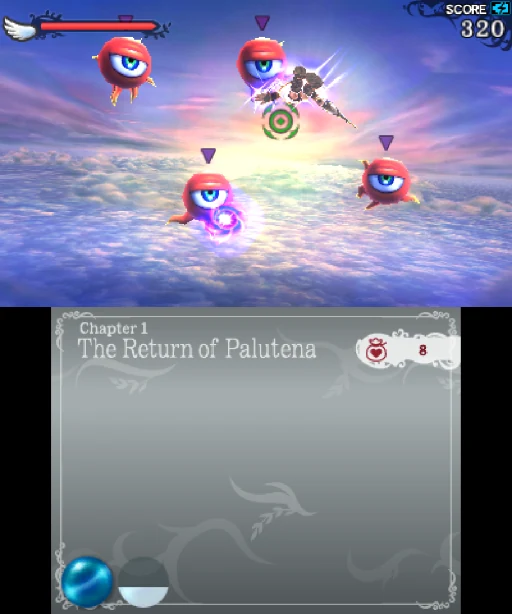 3DSKid Icarus: UprisingOn a Duo Lite running the GammaOS Nano 1.5 beta, the reviewer calls it playable but reports slowdown later in the sequence. A stand helps with the original touch controls; no control mod is installed.Pocket Duo Lite
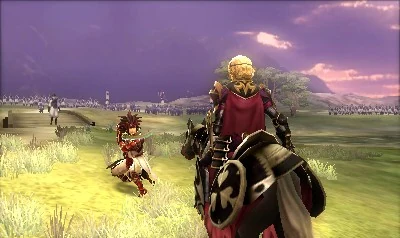 3DSFire Emblem Fates: BirthrightOn a Duo Lite running the GammaOS Nano 1.5 beta at 2×, repeated black flickering is distracting enough that the reviewer questions the experience, and fast-forward headroom does not fix it.Pocket Duo Lite
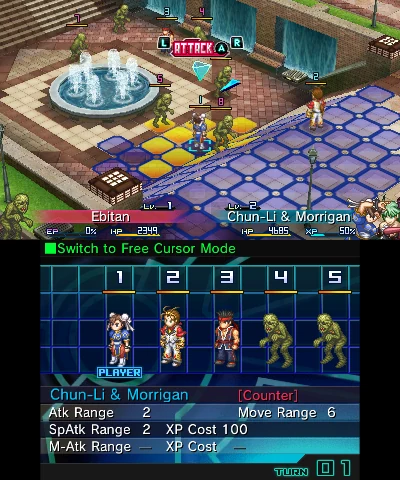 3DSProject X ZoneOn a Duo Lite running the GammaOS Nano 1.5 beta, the one short battle shown runs well, without the flickering seen in the earlier Fire Emblem test.Pocket Duo Lite
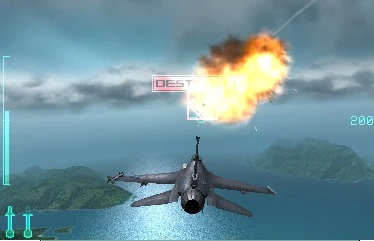 3DSAce Combat: Assault Horizon LegacyOn a Duo Lite running the GammaOS Nano 1.5 beta, the reviewer reports slowdowns in the flight footage and suggests trying 1×, which is not tested.Pocket Duo Lite
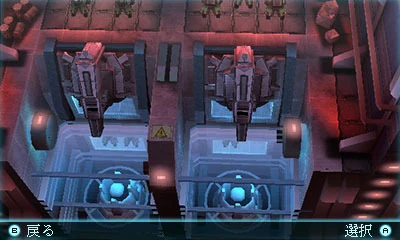 3DSTom Clancy’s Ghost Recon: Shadow WarsOn a Duo Lite running the GammaOS Nano 1.5 beta, the footage shows persistent rendering corruption even though the reviewer says speed looks fine, and they question whether it is playable.Pocket Duo Lite
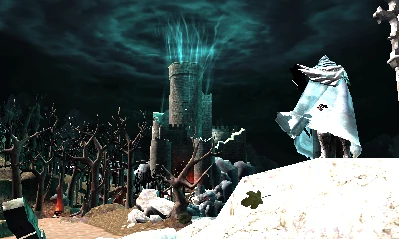 3DSCastlevania: Lords of Shadow – Mirror of FateOn a Duo Lite running the GammaOS Nano 1.5 beta at a confirmed 1×, the reviewer describes the opening as only partly playable and still demanding.Pocket Duo Lite
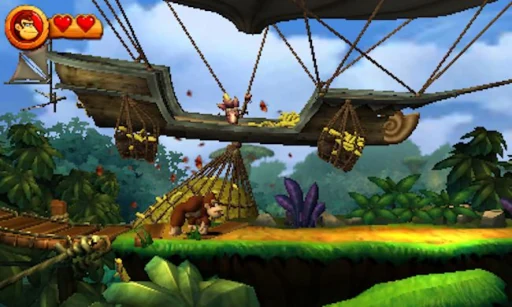 3DSDonkey Kong Country Returns 3DA regular Duo test reports near-full-speed play at 3× after enabling hardware shaders. An earlier Duo Lite test on a GammaOS beta reports acceptable gameplay at 2×, with slower menus or scenes. Both cover a short stretch of play.Pocket Duo and Duo Lite
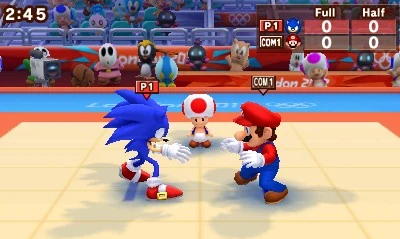 3DSMario & Sonic at the London 2012 Olympic GamesOn a Duo Lite running the GammaOS Nano 1.5 beta at 2×, the reviewer plays brief running and judo events. No frame rate or overall verdict is given.Pocket Duo Lite
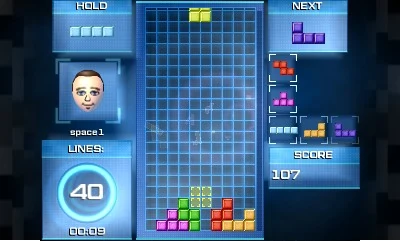 3DSTetris UltimateOn a Duo Lite running the GammaOS Nano 1.5 beta, the reviewer plays a short session and praises the D-pad for repeated inputs. No frame rate or latency figures are given.Pocket Duo Lite
 3DSStory of Seasons: Trio of TownsOn a Duo Lite running the GammaOS Nano 1.5 beta, the reviewer reports good speed but sees the lower-screen interface disappear around fast-forward changes, then return. The cause is unclear.Pocket Duo Lite
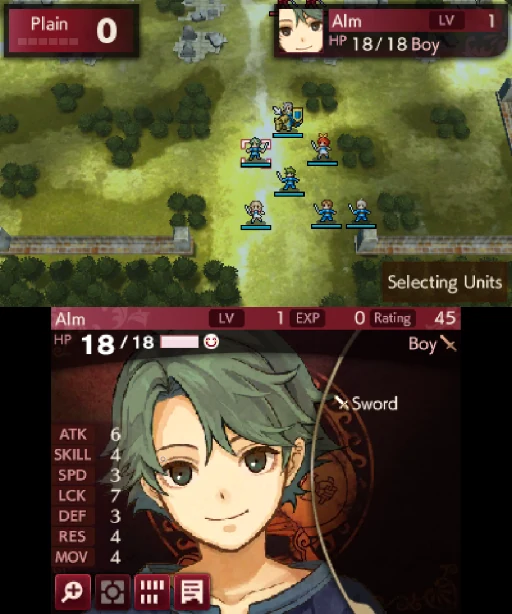 3DSFire Emblem Echoes: Shadows of ValentiaOn a Duo Lite running the GammaOS Nano 1.5 beta, a very brief test shows flickering similar to the earlier Fire Emblem test. It is too short to judge the whole game.Pocket Duo Lite
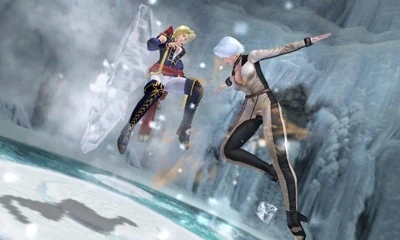 3DSDead or Alive: DimensionsOn a Duo Lite running the GammaOS Nano 1.5 beta, the reviewer plays several short fights and reports a good result. The resolution is not stated.Pocket Duo Lite
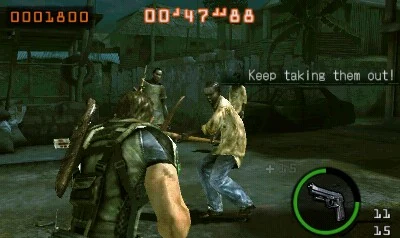 3DSResident Evil: The Mercenaries 3DResident Evil: The Mercenaries 3D remains a poor experience in this Lite test from before GammaOS. The reviewer first misnames the driver and corrects it, tries an unnamed Turnip build, then selects the system driver; the final test still struggles. The Azahar variant, build and resolution are unknown.Pocket Duo Lite
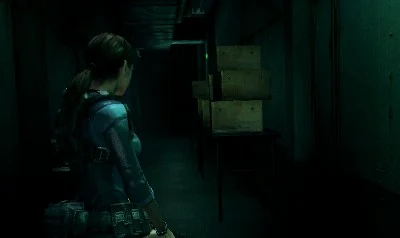 3DSResident Evil: Revelations (3DS)Resident Evil: Revelations hard-crashes during this earlier Lite 3DS stream. The reviewer also says its fps counter is not working, so no reliable frame rate is available.Pocket Duo Lite
 3DSRhythm Thief & the Emperor’s TreasureRhythm Thief & the Emperor’s Treasure runs at a reported roughly 25 fps on Lite with the system GPU driver. The reviewer cannot play the rhythm section reliably because timing is off; no working setup is shown.Pocket Duo Lite
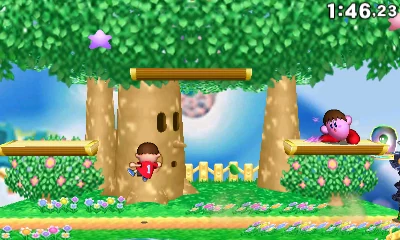 3DSSuper Smash Bros. for Nintendo 3DSAn earlier Duo Lite test reports unstable performance, with only occasional bursts of 60 fps. A later regular Duo video shows a short 3× Azahar clip without a frame rate. Emulator and driver builds are unknown in both.Pocket Duo and Duo Lite
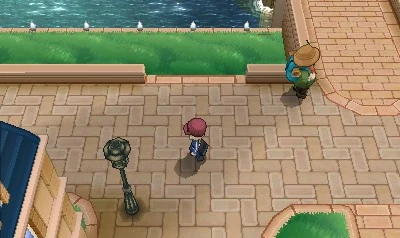 3DSPokémon XPokémon X gets a positive verdict in a short test on Lite’s GammaOS preview, with shader-compilation stutter and occasional graphical issues reported. The Azahar Nano menu shows 2× with dynamic resolution On, so it was not a fixed 2× throughout.Pocket Duo Lite
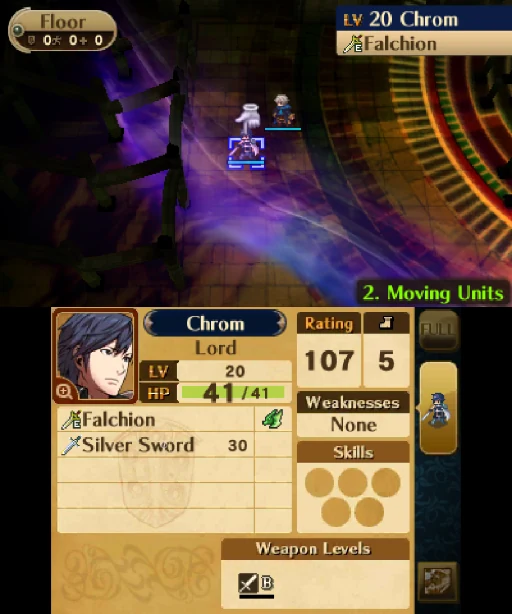 3DSFire Emblem AwakeningFire Emblem Awakening’s opening and tutorial battle get a positive verdict on Lite’s GammaOS preview, with some dips. The reviewer had already run the game once to compile shaders, so a first launch may run worse.Pocket Duo Lite
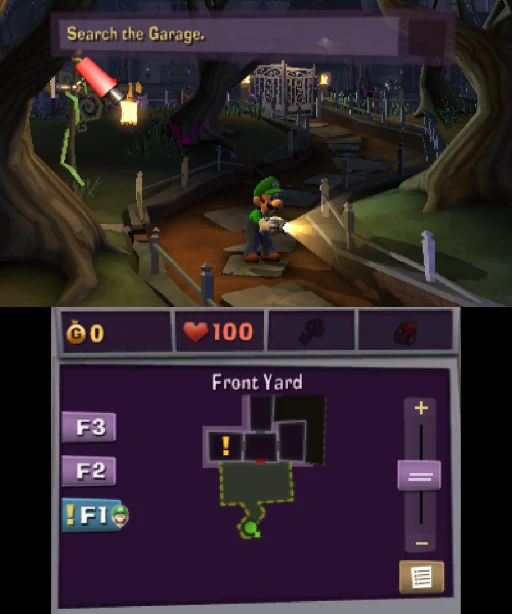 3DSLuigi’s Mansion: Dark MoonLuigi’s Mansion: Dark Moon remains a poor result in the Lite GammaOS preview. The reviewer lowers resolution to Native (1×) and disables dynamic resolution, then reports little improvement, and it is still not playable.Pocket Duo Lite
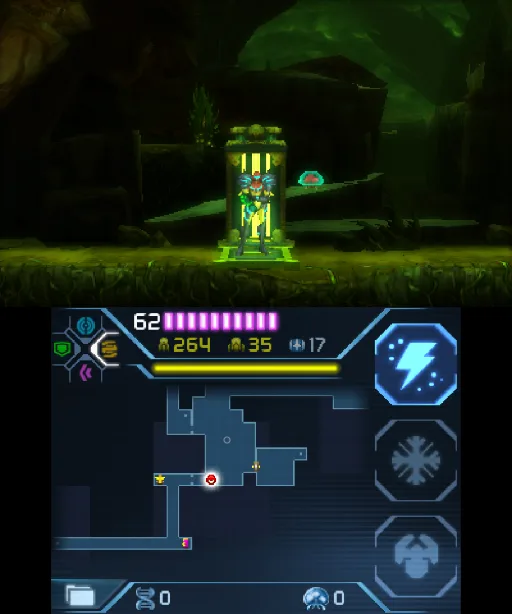 3DSMetroid: Samus ReturnsAt 4× in Azahar, one Duo review held around 30 to 31 fps on the stock Qualcomm driver and 27 to 28 fps with Mr. Purple’s T30, so the stock driver did slightly better here.Pocket Duo
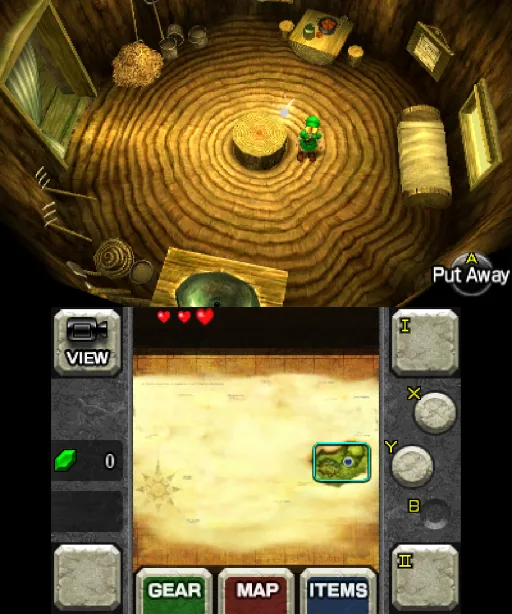 3DSThe Legend of Zelda: Ocarina of Time 3DOne Duo review found it looks and performs well at 4× in Azahar and named it a standout game to try on the Duo.Pocket Duo
Card screenshots come from Libretro, not from a Duo.
All game notesReviews and hands-on footage
 🔥 Probé la Retroid Pocket Duo: ¿Vale la pena para 3DS, Switch y más?Esto es Retro · First impressions
 The new Dual Screen to get: Retroid Pocket DuoWULFF DEN · Review
 Retroid Pocket Duo : configurer ses émulateurs (Guide complet)Cloud Gaming France · Setup tip
 BIG Driver Updates for the Retroid Pocket DuoRetro Game Corps · Setup tip
Show 11 more
 千元双屏掌机RP Duo,上手体验到底如何?卡纸biubiu · First impressions
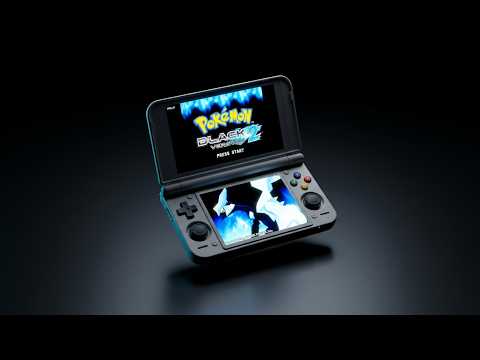 The Dual-Screen Handheld We’ve Been Waiting For?OJAYSAN · First impressions
 Retroid Pocket Duo : premières impressions après déballageCloud Gaming France · First impressions
 Retroid Pocket Duo Lite, 3DS, GammaOS Nano and 17 games testforthenext · Hands-on livestream
 Duo Lite gets Fixed, Gamma hits us with ANOTHER ONEV1cariousGaming · Gameplay test
 Retroid Pocket DUO Review: Mid-game (+ Odin 3 Portal thoughts)Retro Handhelds · Review discussion
 Retroid Pocket Duo In-Depth ReviewRetro Game Corps · Review
 The Duo We Wanted // RETROID POCKET DUO REVIEWTechDweeb · Review
 Hands on With The Retroid Pocket Duo; A Little More Magic This TimeGardiner Bryant · Review
 Retroid Pocket Duo Lite, 3DS, Resident Evil: The Mercenaries 3D and your games testedforthenext · Hands-on livestream
 Retroid Pocket Duo Lite, NDS, The Legend of Zelda: Phantom Hourglass and 27 games testforthenext · Hands-on livestream