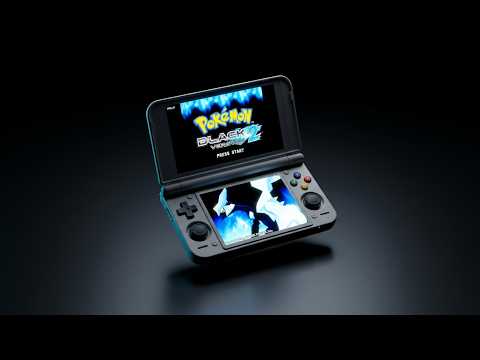
Pocket Duo frontends: choose Cocoon, ES-DE or another launcher
Compare Pocket Duo library layouts, set up a frontend after direct emulator launching works, and check game launching, screens and resume behaviour.
In this guide
Choose a frontend by the library layout and launch behaviour you want. Cocoon suits an integrated two-screen home screen, and ES-DE with its Companion suits someone who wants ES-DE’s library plus artwork on the second display. Both appear in published Duo reviews, and both still hand each game to the emulator that runs it.
Before adding a frontend, launch a game directly in each emulator you plan to use. If something breaks later, that working reference tells you whether the library or the emulator is at fault.
If the terms are unfamiliar, the quick start guide explains the difference between a game file, emulator and frontend.
The stock lower-screen app list may be less flexible than you expect
One regular Duo owner setting up Android 16 reported on November 4 that the stock lower-screen app list could scroll and launch apps, but they could not drag or reorder icons, make folders, or delete entries. Their firmware build was not supplied, so this describes that owner’s setup rather than every Duo firmware version.
If you want a different library layout, compare the frontends below after direct emulator launching works. Installing a frontend does not itself prove that you can customize Retroid’s stock lower-screen drawer; check the frontend’s own second-screen behaviour separately. The same owner planned to try Daijisho temporarily, but had not reported a completed two-screen setup, so that plan is not a compatibility recommendation.
Compare the main choices by purpose
Cocoon documents a game-library home screen, platform players and independent display roles. Retro Game Corps discusses its dual-screen layout on the Duo; the video doesn’t name a Cocoon version, so go by the current project documentation for menu names.
ES-DE with ES-DE Companion pairs ES-DE’s library with a separate Android app for second-screen media and widgets. ES-DE’s website lists its Android distribution options, the Companion README explains the separate app and its dependency on ES-DE, and TechDweeb reports using the combination on the Duo.
Blip is another controller-friendly Android library. Its project README documents folder scanning and emulator selection, and explains which paid features differ between the GitHub build and the Play Store. Check those differences before choosing a download.
NeoStation is an open-source frontend for Android and desktop. Its release notes describe a bottom-screen panel with Now Playing, an app dock and achievements, and list Eden Duo and WatermelonDS as launch targets. It’s still labelled beta, and no Duo review of it has turned up yet.
iiSU is worth a look if you like its interface, but the checked releases are alpha builds, so it may not match your current frontend’s reliability or features.
New Chinese frontends: what is established so far
RetroMao (复古猫) is a developer-led Duo option. Its November 3 introduction shows a regular Pocket Duo frontend and describes a plugin system. The save-sync demonstration also uses a separate program on a Nintendo 3DS and a configured cloud/WebDAV service. It does not establish that arbitrary 3DS emulator saves will sync automatically. A versioned build, public download and save-conflict instructions have not been verified, so this is a project to follow rather than an installation recipe.
LevelUp has an official Android download and developer tutorials for its sidebar and dynamic wallpapers. A community dual-screen video describes using a separate map app alongside Wuthering Waves and Fantasy Life i; that map app is distinct from the launcher. Check model support and launch/resume behaviour before replacing a working home screen. The current offered build is listed on the resource page, separately from the unidentified build in that video.
Pocket Museum takes a different approach: a GBA library with 3D boxes and a built-in emulator. Its official installer list currently covers three AYANEO/KONKR models, while Duo adaptations are community work. The port author reports accelerated game speed at high display refresh rates. Treat that as a reason to check gameplay speed carefully; the description does not establish a tested refresh-rate fix or a versioned Duo download. Pocket Museum’s official paired local-network save sync is also separate from RetroMao’s 3DS demonstration.
Add one platform before scanning everything
Start with one platform folder containing a few games that already launch correctly. Choose that folder in the frontend’s file picker and select the installed emulator as its player. Confirm one title opens and then exits back to the library, and add the rest of your platforms once that works.
For Cocoon, the emulator setup guide places the default player under Settings → Library & Data → Platforms. It also documents a per-game player choice, which lets one title use a different emulator while the platform default stays as it is.
Choose where the library and games open
Cocoon’s dual-screen guide documents reversing display roles and choosing the launch screen per game or folder. Library display roles control the home-screen arrangement, while the emulator’s own layout controls the game’s two pictures, so change the one that matches the problem.
Close and reopen the frontend, then launch again. Check that the game appears on the intended display and that returning Home behaves as expected. Resume features depend on the frontend’s device access and on the app being launched, so try your combination before relying on it to keep your progress, and keep normal game saves too.
Let artwork finish, then check everyday behaviour
Iconic is an ES-DE theme: it changes the library’s appearance, while the separate Companion handles second-screen features. A community member describes using Iconic with a dual-screen companion as their default setup, but did not identify the hardware or builds. Treat that as a layout idea to try after game launching works, rather than evidence of Duo performance or battery life.
Importing and scraping a library adds background work. Let it finish before judging navigation speed, and try a small library before setting up animated themes. Once the interface has settled, try a normal play session, closing the lid, waking and returning to your game.
The directory’s “Most popular” order counts how often owners mention each app. Use it to find what people are talking about, then read the project’s support notes and any reported issues; it isn’t a review score or a battery-life test.
Apps in this guide
Latest releases. A video may have used an older version.
Sources
- Cocoon getting started
- Cocoon emulator setup
- Cocoon display roles and launching
- ES-DE Android distribution and features
- Iconic theme documentation
- ES-DE Companion documentation
- Blip launcher documentation
- NeoStation repository and release notes
- iiSU published alpha releases
- RetroMao developer introduction and Duo demonstration
- LevelUp official launcher and downloads
- LevelUp developer sidebar and wallpaper tutorial
- LevelUp community dual-screen and separate map-app demonstration
- AYASPACE 2 Pocket Museum official features and device installers
- Pocket Museum community Duo port and refresh-rate warning
- Retro Game Corps: Cocoon on the Pocket Duo
- TechDweeb: ES-DE Companion on the Pocket Duo